
Data & accessDatabases
Add and manage a database
Create PostgreSQL or SQLite on your Mac, connect it to an app, and work with the data in Database Studio.
Choose the engine from application needs
| Engine | Best fit |
|---|---|
| Managed PostgreSQL 17 | Multiple applications, separate credentials, relational workloads, and independent lifecycle. |
| Managed SQLite | One attached application, one writer, simple local persistence, and easy portability. |
| External PostgreSQL | An existing public-TLS service such as Supabase or Neon with full certificate verification. |
Create a managed database
Open Databases and choose New database
Give the resource a stable name and select PostgreSQL or SQLite explicitly.
Wait for Ready
LiveHQ creates the isolated runtime resources, credentials, and health evidence before the database becomes attachable.
Attach from the app or deployment
Select the database, access level, and exact case-sensitive environment variable expected by the application.
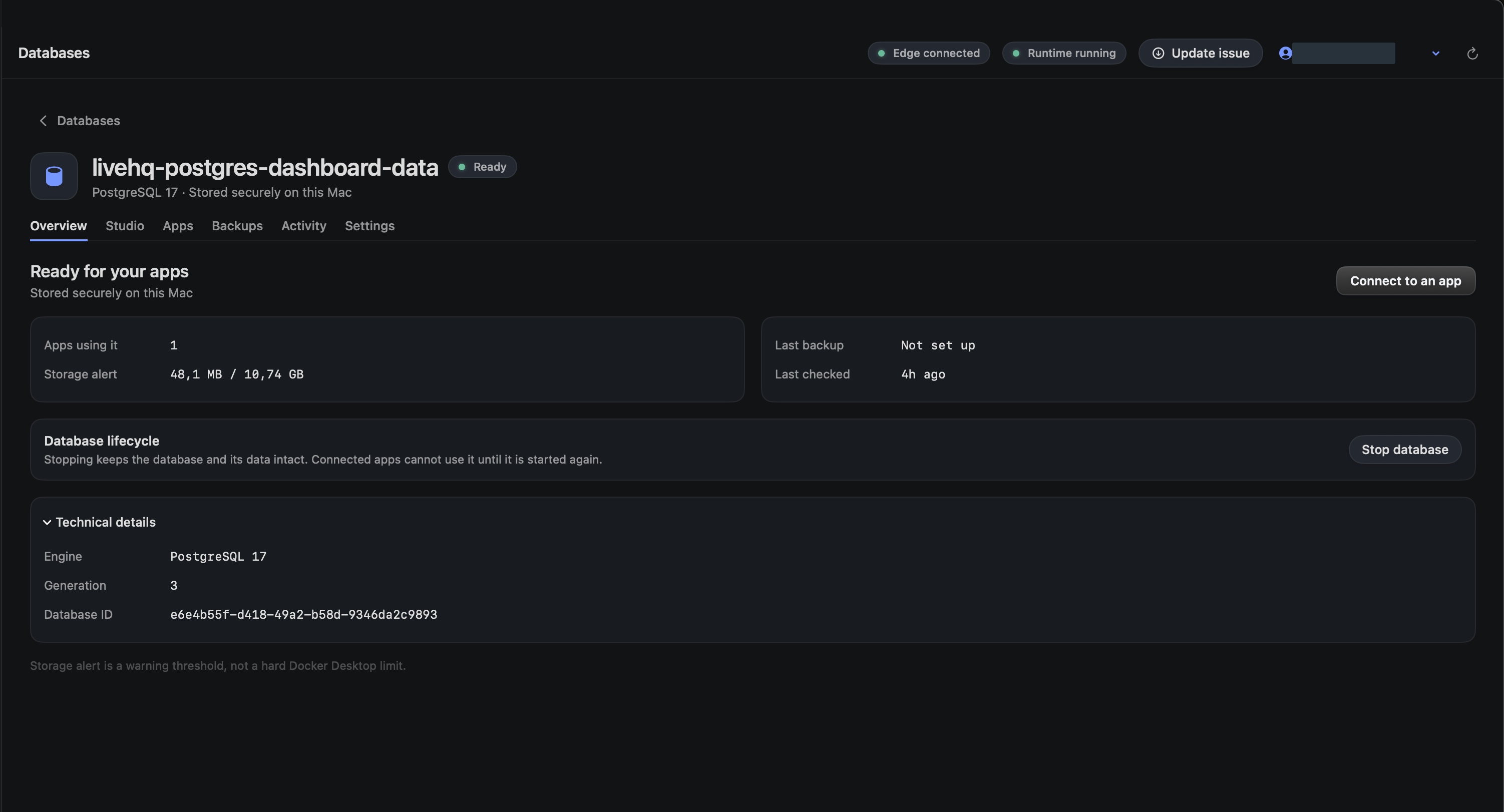
Choose a detail to zoom in, or enlarge the full screenshot.
Work in Database Studio
Studio provides Data, SQL, and Schema workspaces without sending SQL, rows, schema, files, or database credentials through the LiveHQ backend or edge.
Read-only is the safe default. Choose Allow changes only when you intend to mutate data. PostgreSQL uses scoped Studio roles; SQLite briefly fences the app writer for an atomic change and resumes it afterward.
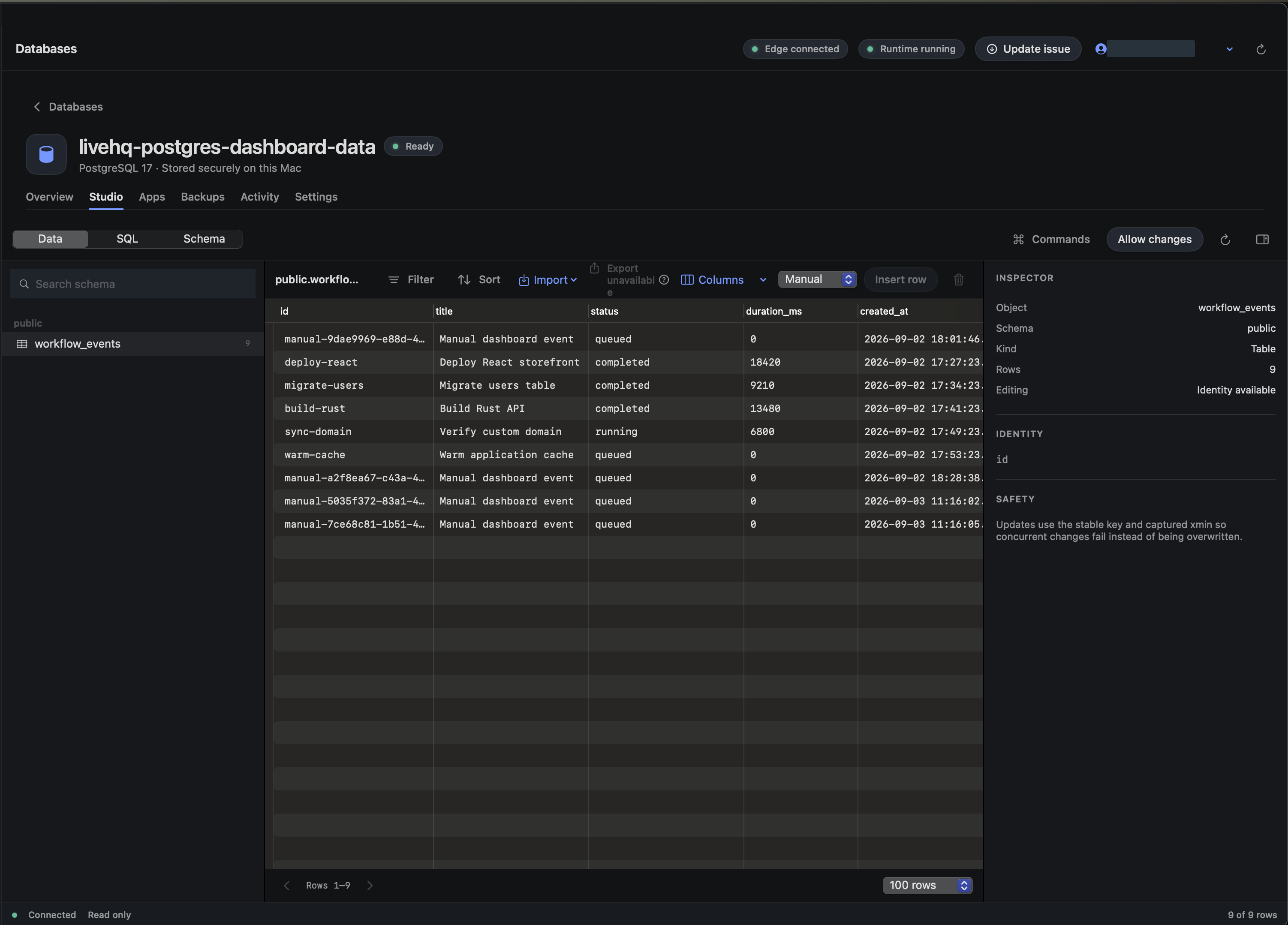
Choose a detail to zoom in, or enlarge the full screenshot.
Run schema work before health and publication
Application schema changes belong in an explicit release command. The signed runtime executes the exact reviewed argv against the candidate before final health checks and route activation.
Release commands must be noninteractive, bounded, and idempotent. A failure leaves the previous application release live.